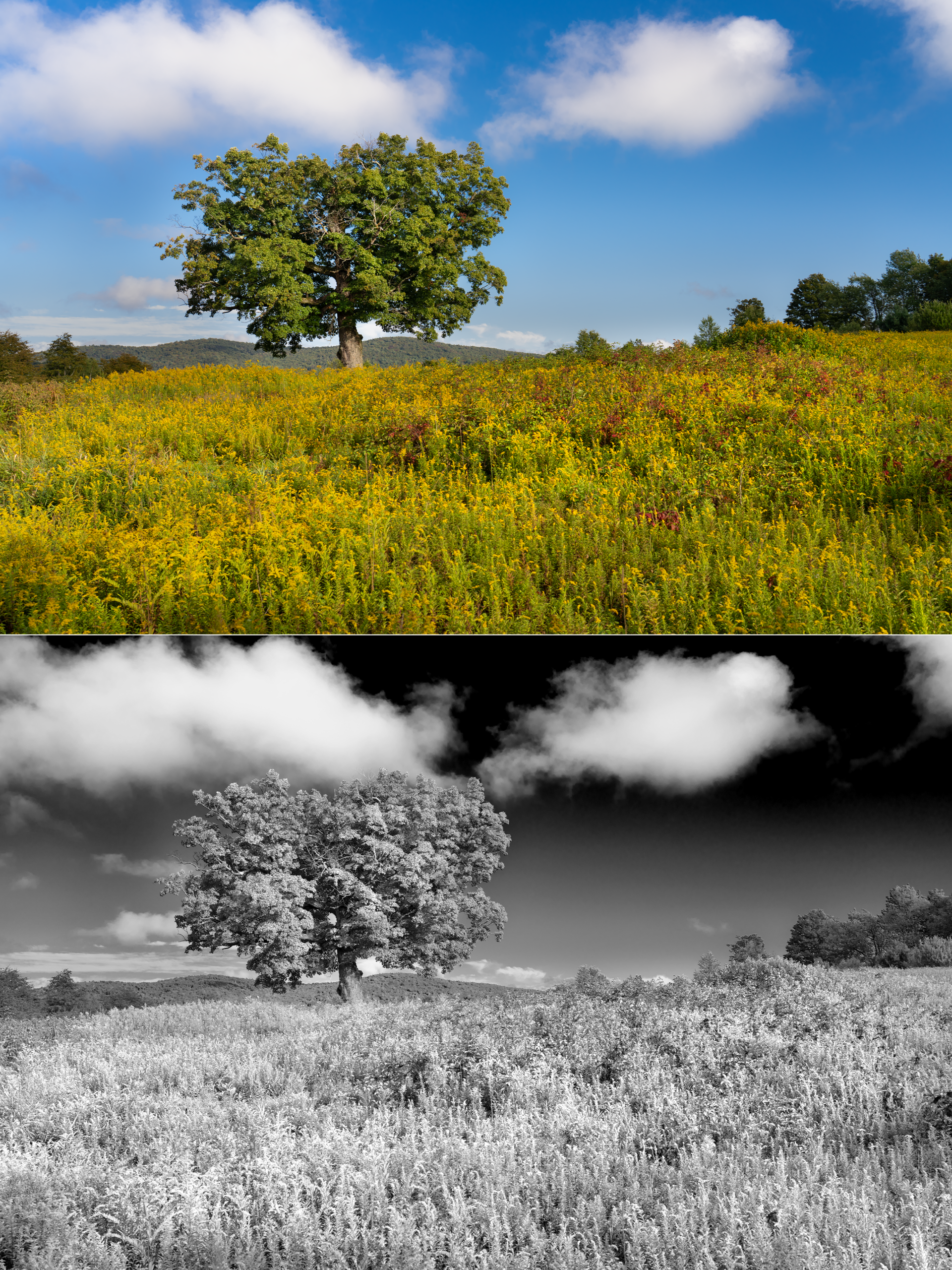
Sometimes when I have a color photo that I think would be more dramatic in black-and-white I give it one of my favorite effects which simulates the look of infrared without the need to modify my camera sensor. As people ask me all of the time: “Red filter? Orange filter? Infrared?” Maybe it’s easier just to post it here. Most image editing software probably has a similar feature but here it is in Photoshop.
It’s a quick video. You can go through the Image menu, choose Adjustments, and then Black & White, or if you still want to preserve the color version for later you can do it by adding an adjustment layer in the Layers panel like I do here. First go to the “Window” menu in Photoshop and make sure that both “Layers” and “Properties” are checked and visible.
The exact values will vary quite a bit from image to image but the general idea to gain this look is simple. Move the green, yellow and (usually) red sliders to the right. Move the blue and cyan sliders to the left. Though the blue and cyan have a lot of overlapping effect, they do slightly different things. One caution, don’t go too dark with either of those because you will start to pick up all sorts of unwanted noise in the image.